MonitorDeck Icon

STREAM DECK PLUGIN

MonitorDeck

Your displays, within reach. Physical hardware monitor brightness, contrast, speaker volume, video input switching, and custom lighting scenes right from your Stream Deck.

Why MonitorDeck?

True Hardware Backlight Control

Unlike software dimmer utilities that simply draw a dark transparent layer over your screen (killing contrast and colour accuracy), MonitorDeck directly controls the physical backlight of your monitors via industry-standard DDC/CI and Apple Display Services.
Multi-Monitor & "All Monitors" Sync

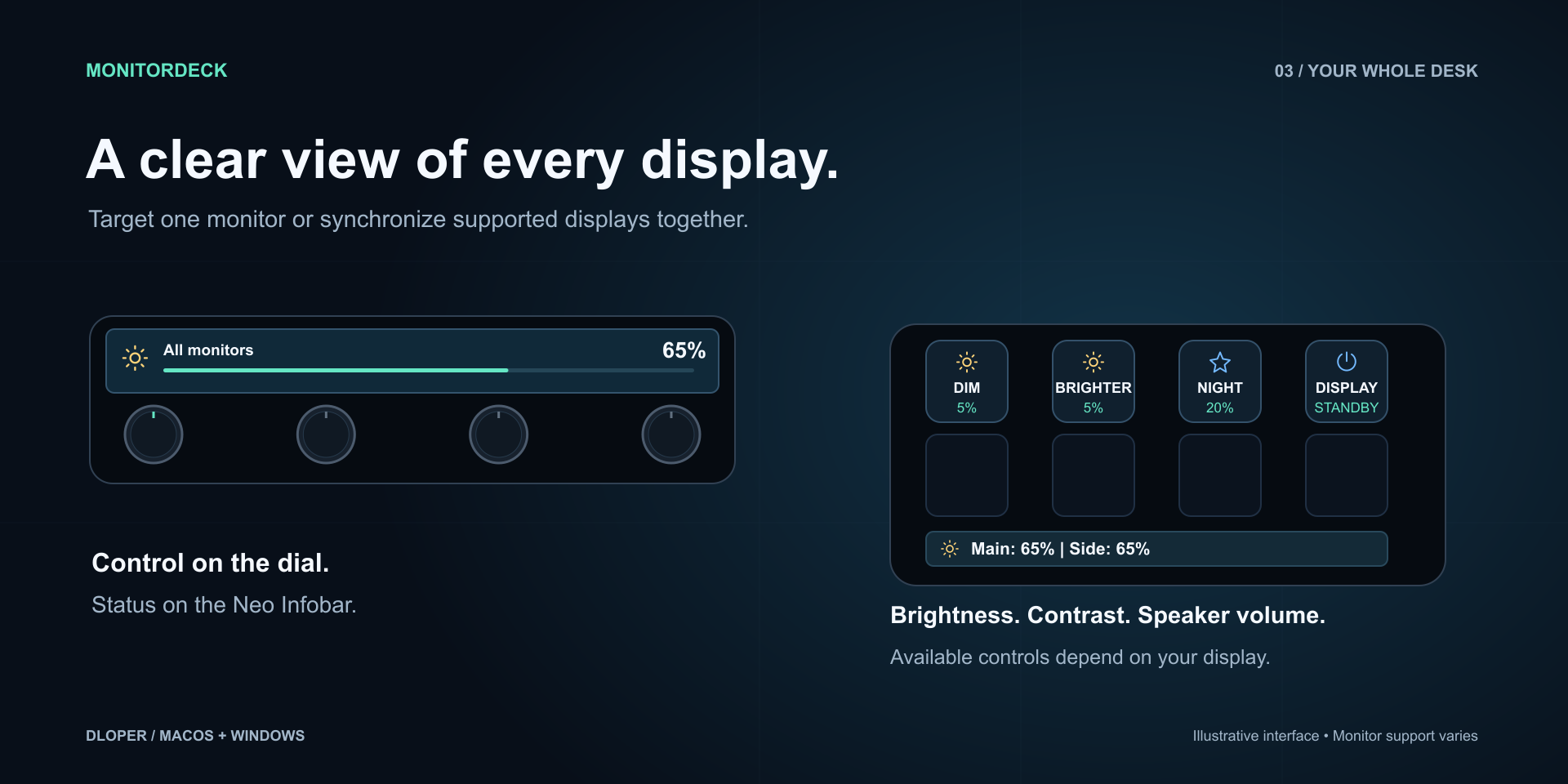
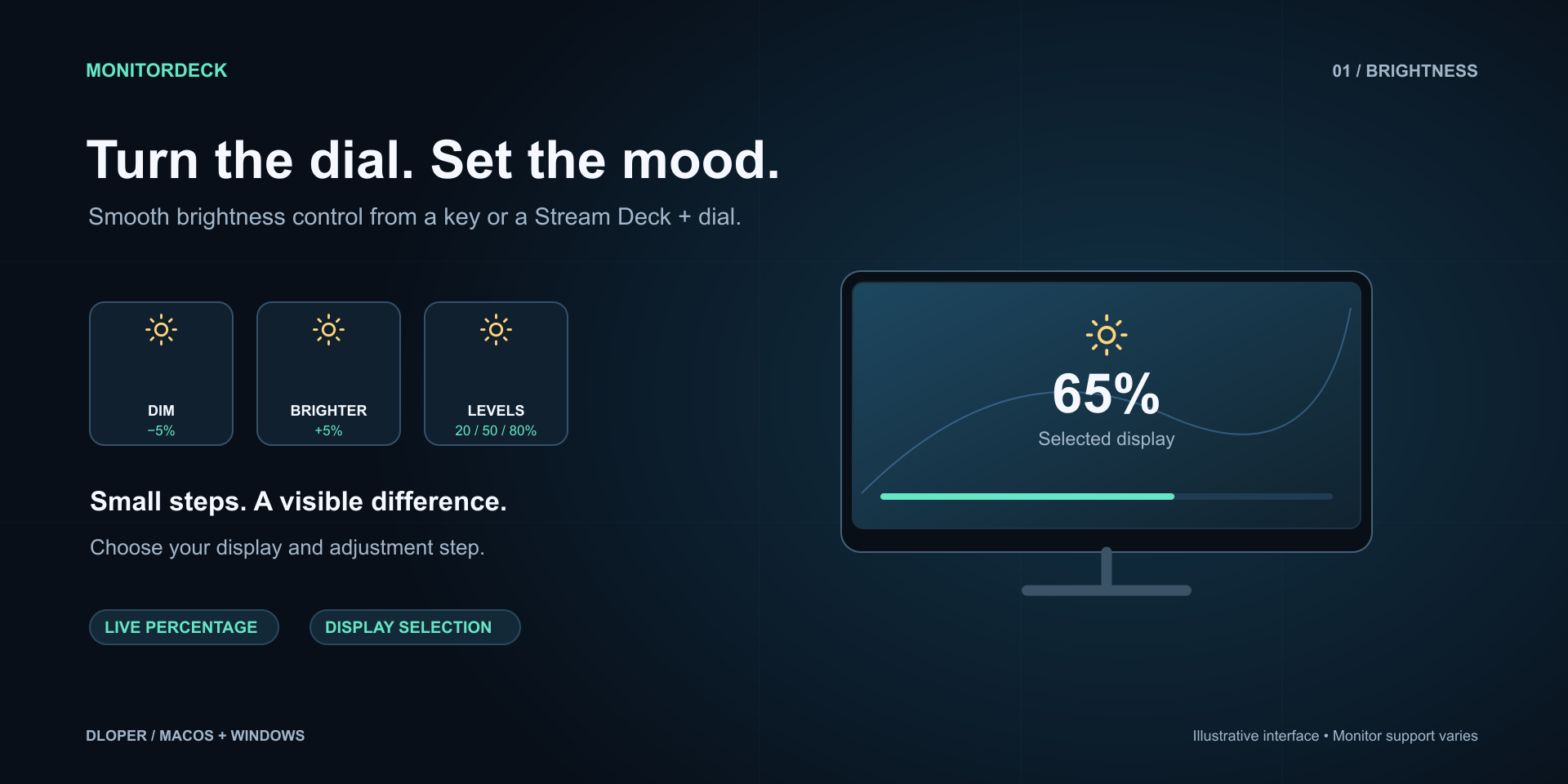
Control specific monitors independently or adjust every display on your desk simultaneously with a single key or dial turn. Keep brightness matched throughout changing daylight without touching clumsy monitor buttons.

Stream Deck + Dials & Neo Infobar

Experience smooth analog rotary brightness and contrast adjustments on Stream Deck +. View glanceable live brightness percentages on the Stream Deck Neo Infobar display.

Stream Deck Integration

Effortless hardware display control engineered directly for physical keys, touchstrips, and rotary encoders.

Action Catalog

Seven powerful display management actions ready to assign to your keys, dials, and touchscreens.

Brightness Step Icon

Brightness step

Step brightness up or down by 1%, 2%, 5%, or 10%. Target your main screen, specific monitors, or All monitors at once.

Keypad
Brightness Cycle Icon

Brightness cycle

Step through preset brightness stops on repeated presses. Configure custom comma-separated percentages (e.g. 20, 50, 80, 100).

Keypad
Monitor Control Dial Icon

Monitor control dial

Rotate to adjust brightness, contrast, or speaker volume. Tap touchstrip to switch displays; push dial to toggle levels or standby.

Stream Deck + Encoder
Video Input Icon

Video input

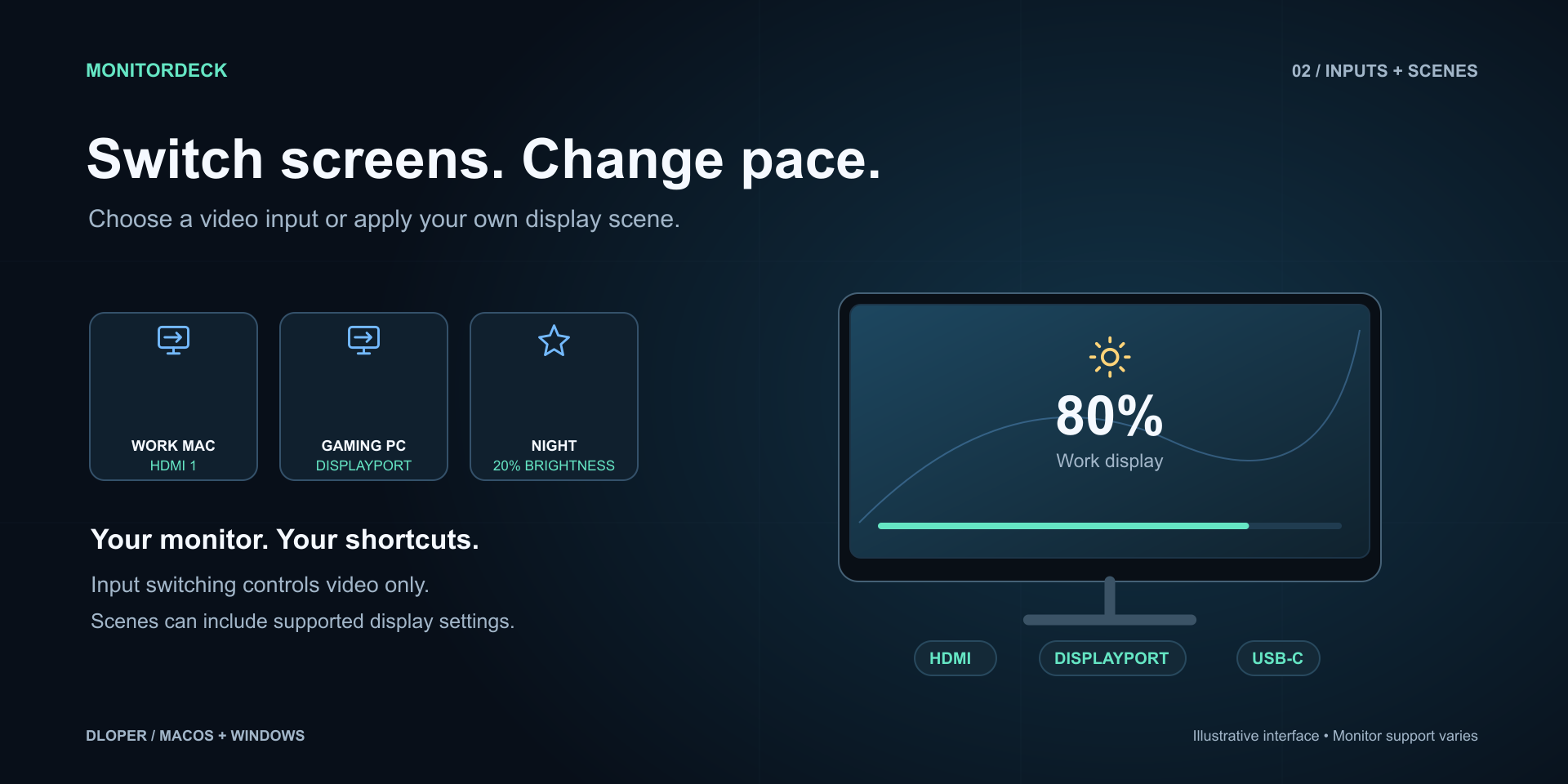
Switch monitor video source to DisplayPort 1/2, HDMI 1/2, or USB-C, or toggle between input A and B without opening OSD menus.

Keypad
Apply Scene Icon

Apply scene

Trigger coordinated settings across displays in one press: Work (80%), Night (20%), Cinema (15% bright / 75% contrast), or Custom.

Keypad
Display Power Icon

Display power

Send standby or wake requests to compatible external screens via DDC commands without putting your host computer to sleep.

Keypad
Monitor Infobar Icon

Monitor Infobar

Display current brightness percentages for your active or all connected displays directly on the Stream Deck Neo Infobar.

Neo Infobar

Edition Comparison

Choose between MonitorDeck for power users with multi-monitor desks or MonitorDeck Lite for quick single-screen brightness.

Feature MonitorDeck (Pro) MonitorDeck Lite
Primary-display brightness keys ✓ ✓
Multi-display selection & "All monitors" sync ✓ Yes Primary monitor only
Stream Deck + rotary encoder dials ✓ Yes ✗
Stream Deck Neo Infobar display ✓ Yes ✗
Brightness cycle levels Custom sequence Fixed 20, 50, 80, 100%
Video input switching (HDMI / DP / USB-C) ✓ Yes ✗
Display scenes (Work, Cinema, Night) ✓ Yes ✗
Contrast & monitor-speaker volume ✓ Yes ✗
Display standby & wake requests ✓ Yes ✗

Engineered for Display Safety

Safe DDC/CI Bus Throttling

Monitor I2C/DDC communication buses operate at slow clock rates. MonitorDeck features intelligent debouncing and write spacing to avoid flooding or locking up external monitor microcontrollers.

Native Hardware Interfaces

Built with native universal helpers: IOAVService and IOI2C on Apple silicon and Intel Macs, Apple Display Services for built-in displays, and native Win32 DDC APIs on Windows.

Zero Command-Line Dependencies

No terminal commands, Homebrew packages, Python environments, or root drivers required. Everything comes bundled in the plugin package and runs out of the box.

Honest Hardware Reporting

Monitors vary in what VCP codes they accept. When a display reports an unsupported control or an unconfirmed value, MonitorDeck indicates it clearly rather than faking a success state.

Privacy First

100% On-Device Display Communication

MonitorDeck communicates exclusively across local operating system display buses directly to your connected monitors. It has no network permissions, no telemetry, no analytics, and no remote servers.

Compatibility

Operating Systems: macOS 13 or later (Apple silicon & Intel) • Windows 10/11 x64.

Monitors: Third-party external monitors with DDC/CI enabled in OSD, Apple Studio Display, Apple Pro Display XDR, and MacBook built-in Retina displays.

Connections: Direct HDMI, DisplayPort, and USB-C/Thunderbolt cables. (DDC/CI must be supported by any intermediate dock/adapter).

Software: Requires Stream Deck software version 7.6 or later.

Support & Guides

MonitorDeck Icon

MonitorDeck User Guide

Comprehensive walkthrough of DDC/CI on-screen setup, multi-monitor configuration, input toggling, and troubleshooting connection paths.

Request a Plugin Back to Home